You can compare business and marketplace assets side by side to gain more insight and see asset property differences using Discover Assets. You can compare them based on similarity or distinct properties and more.
This topic walks you through comparing datasets (marketplace asset). Similarly, you can compare business assets using the Discover Assets module.
To compare datasets, follow these steps:
-
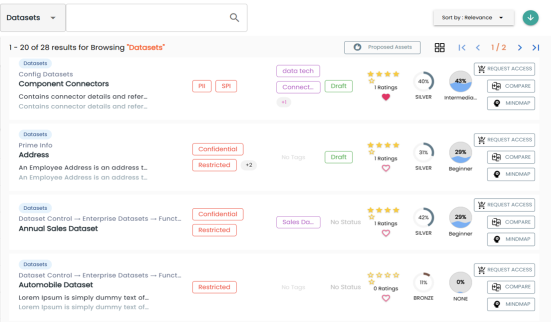
On the Discover Assets dashboard, click the Datasets card, then click Browse Datasets. A list of datasets appears.
- Select a dataset that you want to compare, then click
 .
.
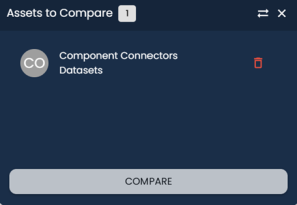
The Asset to Compare pane appears.You can select up to five assets for comparison.
Alternatively, you can also compare assets in the Card View (
. )
) - Choose other required assets you wish to compare, then click
 .
.
Selected assets are added to the Asset to Compare window.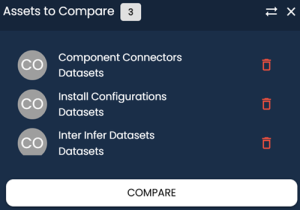
You can click to remove assets from the compare list and
  to move the window.
 - Click Compare.
For example, in the following image, a list of 28 datasets appears.
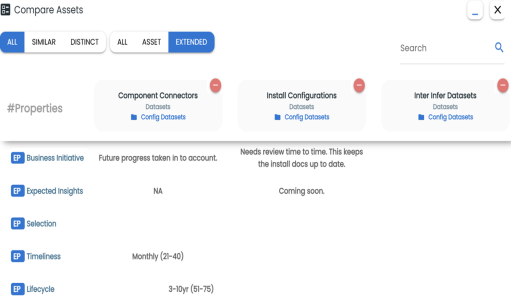
The Compare Assets page appears and displays the side by side comparison of asset properties for the selected assets.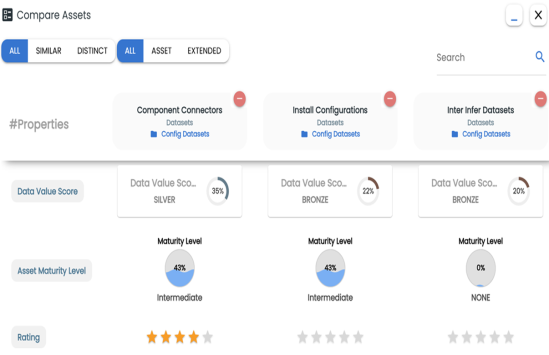
Also, use the Search box to search and compare specific properties of the assets in comparison.
On the Compare Assets pane, you can compare assets using the property filter options to enhance the business and marketplace asset comparison.
Use the following options to compare assets based on similar or distinct properties:
- All
-
Use this option to view all asset properties for comparison.
- Similar
-
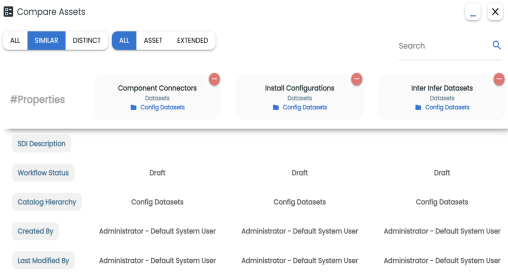
Use this option to view only the asset properties that are similar to the assets in comparison. For example, the following image displays properties that are similar to the assets in comparison.
- Distinct
-
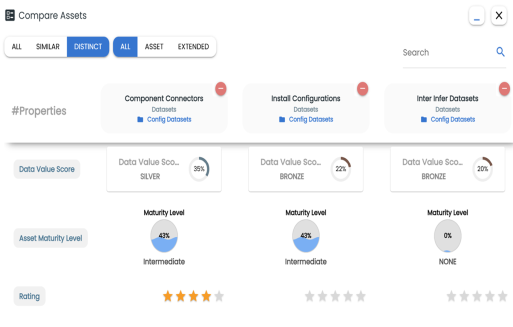
Use this option to view only the asset properties that are different from the assets in comparison. For example, the following image displays the properties that are different between the assets in comparison.
Use the following options to compare assets based on similar or distinct properties:
- All
-
Use this option to view all asset properties for comparison.
- Asset
-
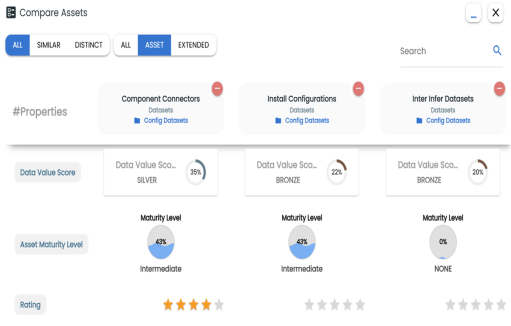
Use this option to view only the asset properties of the assets in comparison. For example, the following image displays all the asset properties.
- Extended
-
Use this option to view only the extended properties of the assets in comparison. For example, the following image displays the extended properties.